Adding and Removing Devices
Adding new devices to a virtual machine is easier than connecting new devices to a real computer. Removing or disconnecting devices is also easy. The following virtual devices can be added to the configuration or removed from it:
Any of the aforementioned devices can be added to the corresponding virtual machine only when it is stopped.
Adding a New Device to a Virtual Machine
- Choose Configure from the Actions menu to open Virtual Machine Configuration.
- Click the Hardware button at the top of the Virtual Machine Configuration dialog to open the pane for editing hardware devices.
-
Click the
Add
button
 in the bottom part of the
Virtual Machine Configuration
dialog and select the device to be added to your virtual machine.
in the bottom part of the
Virtual Machine Configuration
dialog and select the device to be added to your virtual machine.
Note: The Add button is disabled when the virtual machine is running. You need to stop the virtual machine before you can use this button.
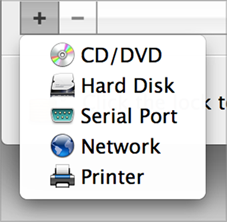
-
If you selected any device except for a hard disk, the corresponding device with a typical configuration is added at once and ready for use.
If you selected a hard disk, you should specify some parameters:
- The hard disk type: a new image file, an existing image file or a physical disk. Select Boot Camp if you want to add an existing Boot Camp partition as a hard disk to your virtual machine.
- If you're adding an existing image file, provide the path on your Mac to it. If you're adding Boot Camp or physical disk, specify its location.
- The hard disk size for the new hard disk image file.
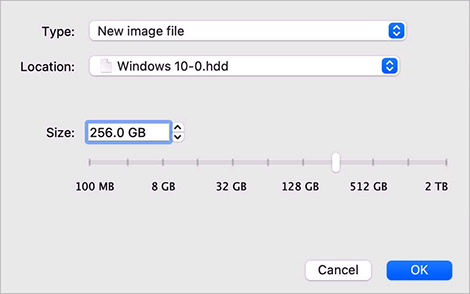
Click OK , to add the hard disk. After you added a new virtual hard disk to the virtual machine configuration, it will be invisible to the operating system installed inside the virtual machine until the moment you initialize it. For detailed information on how to initialize the newly added hard disk, please refer to the documentation and help resources of the operating system installed in your virtual machine.
After the new device is added, you can manage its properties as usual and start using it.
Removing Devices From the Virtual Machine Configuration
- Choose Configure from the Actions menu to open Virtual Machine Configuration.
- Click the Hardware button at the top of the Virtual Machine Configuration dialog to open the pane for editing hardware devices.
-
Select the device you want to remove and click the
Remove
button
 in the bottom part of the
Virtual Machine Configuration
dialog.
in the bottom part of the
Virtual Machine Configuration
dialog.
 Top of page
|