Hard Disk Settings
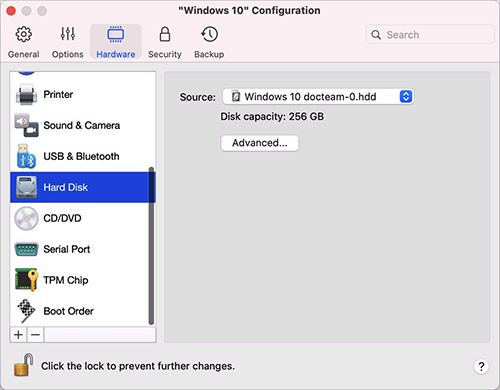
In the Hard Disk pane, you can view and configure the virtual machine hard disk-related settings.
To open these settings, choose Actions > Configure > Hardware , then click Hard Disk .
|
Option |
Description |
|
Source |
Use this field to specify the virtual hard disk file (
Note: you can choose Boot Camp only if you have it on a Mac with an Intel processor. Boot Camp is not available on Mac computers with the Apple M1 chip.
|
|
Properties |
Click this button to edit the hard disk size. |
|
Location |
Use this field to specify the type of interface for connecting the hard disk. This option is for advanced users only. |
|
Enable TRIM |
In most cases, the space that the virtual machine takes up on your hard disk expands as you add files and other data, but isn't reduced when you delete data. To set Parallels Desktop to automatically reduce disk space, select Enable TRIM . This option may affect performance on HDD (not SSD) disks. |
 Top of page
|