|
|
|
|


View Active Parallels Desktop Installations
To view computers with active Parallels Desktop installations:
- On the Dashboard page, locate the Parallels Desktop for Mac Business Edition product card and click the Registered Computers row.
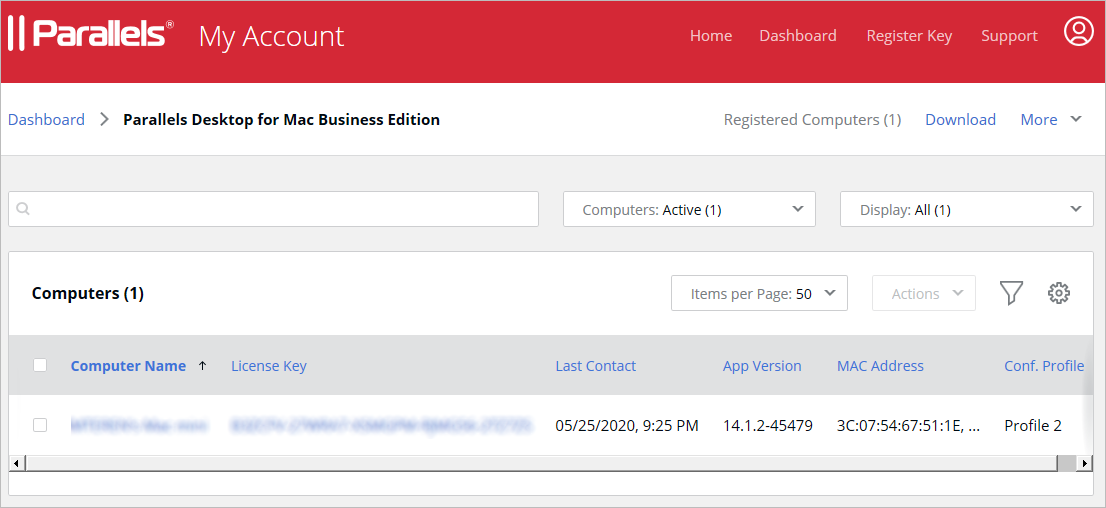
- The page opens displaying the list of active computers.
Note:
Not all available columns are displayed in the
Computers
list by default. To see additional columns, click the
 icon and select the columns you want displayed. To hide a column, deselect it. You may need to scroll the list horizontally to see all columns.
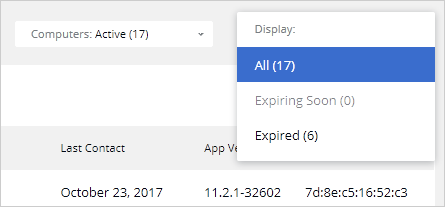
Use the Display drop-down menu to see all, expiring soon, or expired installations. The list will be filtered according to the option that you select.
Use the Computers drop-down menu to filter the list by computer status. You can choose from the following:
- All — display all known computers, active or not.
- Active — display only computers on which Parallels Desktop is active.
- Deactivated — display computers on which Parallels Desktop has been deactivated. For more info, see Deactivate Parallels Desktop on a Computer .
- Blacklisted — Display blacklisted computers. For more info, see Blacklist a Computer .
 Top of page
|
 Feedback
|