|
|
|
|


Deactivate Parallels Desktop on a Computer
To deactivate Parallels Desktop on a computer and to release the license that it's using, do one of the following:
-
Method 1:
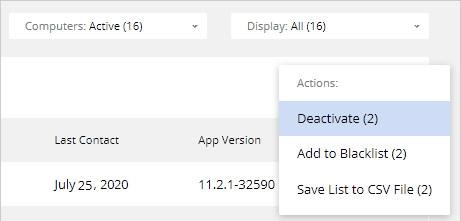
In the main computer list, select one or more computers (select a checkbox in the first column), then click the
Actions
drop-down menu and choose
Deactivate
.
- Method 2: On the Dashboard , click Registered computers , then click on the computer name, and then click Deactivate .
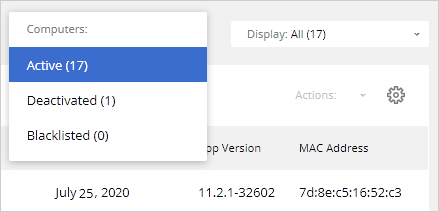
To view the list of deactivated computers, in the main computer list, expand the Computers drop-down menu and choose Deactivated .
Note:
Parallels Desktop Business Edition will continue to run on the affected computer until the computer checks in with the Parallels Licensing Server. This could be anywhere from a few minutes to seven days. If you have access to the computer, you can deactivate the license on it immediately by logging in to it and executing
prlsrvctl update-license
in Terminal.
Alternatively, you can execute the
prlsrvctl deactivate-license
command on a Mac computer. This will deactivate the license and will update the license status in Parallels My Account automatically.
 Top of page
|
 Feedback
|