Share Files and Folders
Parallels Desktop allows you to share folders between the macOS and Windows file systems, so you can easily open macOS files from Windows applications.
Note: These instructions apply to sharing folders between macOS and Linux as well.
Access a macOS Folder or File from a Windows Program
With folder sharing enabled, you can navigate to any shared macOS folder from within a Windows program. When you open a file (for example, by choosing File > Open in many programs), your shared macOS folders appear as network shared directories labeled "psf."
To enable macOS folders for sharing with Windows programs:
- Start Windows.
-
Do one of the following:
-
Click the Parallels icon
 in the menu bar and choose
Configure.
in the menu bar and choose
Configure.
- Click Actions in the Parallels Desktop menu bar at the top of the screen and choose Configure .
-
Click the Parallels icon
- Click Options and select Sharing .
-
Do one of the following:
- To share just the folders in your Home folder, choose Home folder from the Shared Folders menu.
- To share all your macOS folders, choose All disks from the Shared Folders menu.
-
To share any folder you want, click
Custom Folders
and click the add (+) button, then choose the folder you want to share. You can add more folders by clicking the add (+) button again.
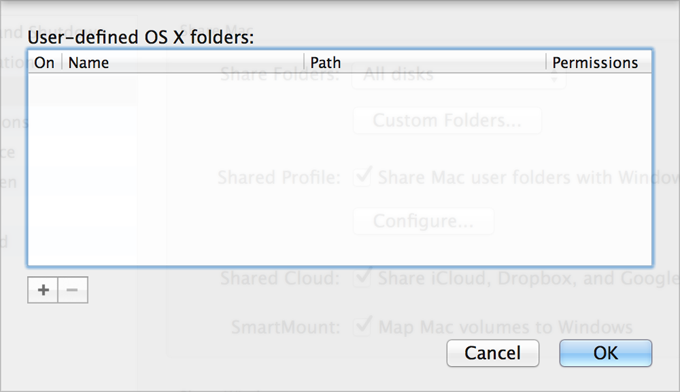
Once you share a macOS folder with Windows you can:
- Disable the folder sharing by deselecting On .
- Change the folder name that will be displayed in Windows by double-clicking the folder name in the Name column and typing another name.
- Restrict writing to this folder by clicking Read & Write in the Permissions folder and choosing Read only . You will not be able to add items to the folder.
- Click OK .
Note: 1. To enable folder sharing, the Isolate Windows from Mac option must be disabled on the Security tab of the Configuration dialog.
2. If you're running Linux, shared folders are mounted to the /
media/psf
or
/mnt/psf
directory.
Set macOS and Windows to Use the Same Folders
You can set macOS and Windows to use the same folders for things like music, documents, pictures, your desktop, and deleted files. So for example, if you save a file to the Documents folder, it will be in the Documents folder whether you're using a macOS application or a Windows program.
- Start Windows.
-
Do one of the following:
-
Click the Parallels icon
in the menu bar and choose
Configure.
- Click Actions in the Parallels Desktop menu bar at the top of the screen and choose Configure .
-
Click the Parallels icon
- Click Options and select Sharing .
-
Select
Share Mac user folders with Windows
.
Your macOS
Desktop,Documents,Pictures,Music,Movies, andDownloadsfolders are merged with the corresponding Windows folders, and the macOS Trash is merged with the Windows Recycle Bin. - If you only want to map some of the folders, click Configure and select the folders you want. To map the macOS Trash to the Windows Recycle Bin, select Merge Recycle Bin with Trash .
Show an Item from Windows in the Finder
If Windows is set to appear in a separate window or in full screen mode , you can show an item from Windows in the macOS Finder.
- In Windows, right-click (or Control-click) a file or folder and choose Show in Finder from the shortcut menu.
From the Finder you could, for example, apply a color label to an item, or easily drag it to another location in the Finder.
Note: You can only perform these actions with files stored in shared folders .
 Top of page
|