General Preferences
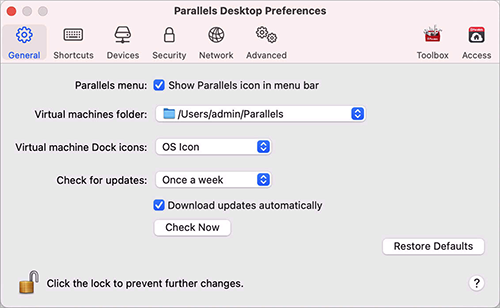
Use General Preferences to specify whether the Parallels menu is available in the macOS menu bar, change the folder where your virtual machines are stored, and more.
To open these preferences, choose Parallels Desktop > Preferences , then click General .
|
Option |
Description |
|
Appearance |
Use this menu to choose the color scheme of the Parallels Desktop wizards and Control Center. Note: This menu is available only in macOS High Sierra 10.13 or earlier. In later versions of macOS, Parallels Desktop uses the dark or light appearance depending on which mode is selected on the General tab of macOS System Preferences. |
|
Parallels menu |
Choose whether the Parallels menu
|
|
Virtual machines folder |
Set where new virtual machines are stored. By default, they are saved to the Parallels folder inside the user's home folder. |
|
Virtual machine Dock icons |
Choose which type of icons your virtual machines have in the Dock:
|
|
Check for updates |
Set the frequency that Parallels Desktop checks for software updates. |
|
Download updates automatically |
When this option is selected, Parallels Desktop downloads updates automatically and asks whether you want to install them. |
|
Check Now |
Click this button to check for updates manually. You can also choose Check for Updates from the Parallels Desktop application menu. |
 is available in the macOS menu bar. This menu provides a quick access to the Parallels Desktop menus, Preferences, Control Center, help resources, virtual machine actions, and more.
 Top of page
|