Share Windows OneDrive Folders with macOS
If you're using Microsoft OneDrive to store files in the cloud, you can easily share your OneDrive folders with macOS. Then you can upload or download OneDrive files in macOS without duplicating any of the files on your hard disk.
Notes:
1. To share OneDrive folders with macOS, the OneDrive desktop app must be installed in Windows. If you're using the preinstalled OneDrive app, OneDrive folders are not shared because this app doesn't create any local folders and works directly with the cloud storage.
2. This feature is available only when Parallels Tools are installed in Windows.
To share your Windows OneDrive folders with macOS, do the following:
- If OneDrive isn't already set up in Windows, set it up. For more information, go to http://windows.microsoft.com/en-us/skydrive/download .
-
Do one of the following:
-
Click the Parallels icon
 in the menu bar and choose
Configure.
in the menu bar and choose
Configure.
- If the Parallels Desktop menu bar is visible at the top of the screen, choose Actions > Configure .
-
Click the Parallels icon
- Click Options and select Sharing > Share Windows .
- Select Access Windows folders from Mac and Share OneDrive with Mac .
- In the macOS Finder, choose Finder > Preferences and select Connected servers .
-
Open the Finder and click your virtual machine in the
Shared
section. The virtual machine must be running.
Note: In macOS 10.14 Mojave (when it is officially released), you can find your virtual machine in the Network section.
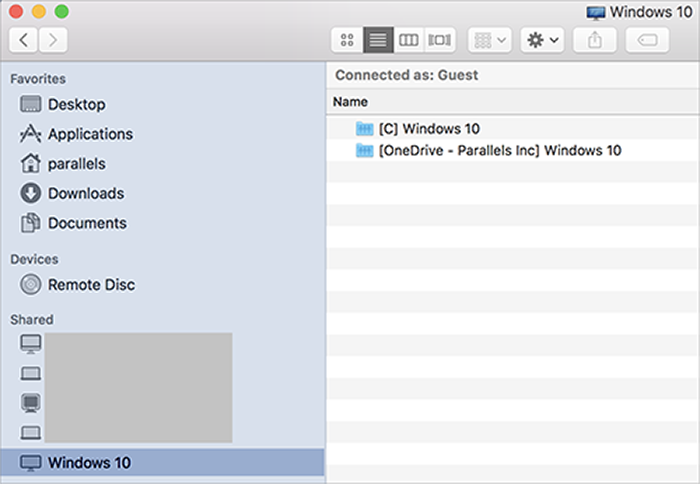
- Double-click the OneDrive disk. The disk gets mounted and shown on the desktop.
-
Drag the OneDrive disk from the desktop to the
Favorites
section in the Finder.

Now OneDrive from Windows is always available in the Finder. You can use it to download or upload files to OneDrive from macOS.
Note: To use OneDrive, Windows must be running.
 Top of page
|