Activate and Register Parallels Desktop
After the installation, activate and register Parallels Desktop. Do the following:
-
Sign in to your Parallels account:
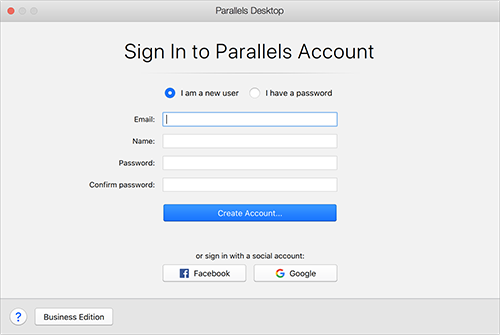
Parallels account allows you to:
- store your product activation keys - you will never forget or lose them;
- prevent anyone but you from using your license keys;
- manage your subscriptions to Parallels products;
- contact the Parallels Support and track your support requests;
- download the latest versions of Parallels products and accompanying documentation;
- get info about the latest updates to your products and beta versions of new products;
- work with remote computers via a web browser (as a Parallels Desktop user, you will get Parallels Access for free);
- manage Parallels Desktop licenses on the Macs belonging to your company (if you use Parallels Desktop for Mac Business Edition).
To sign in, do one of the following:
- If you have an account, select I have a password , enter your email and password and click Sign In .
- If you don't have a Parallels account, select I am a new user , enter an email address that will be used to create the account, your name, password and click Create Account .
-
In the next step, enter your Product Activation Key to activate Parallels Desktop.
Note: If you purchased Parallels Desktop from the Parallels Online Store, a key was sent to the email address you provided. If you bought a boxed copy, you can find your key printed on the installation disc sleeve.
If you already have a license available and associated with your account, just select the license and click Activate .
If You Don't Have A Product Activation Key
If you don't have a key already, you can get a free trial Product Activation Key so you can try out Parallels Desktop for a limited time, click Try Free for 14 days . Or to purchase a key that lets you use Parallels Desktop permanently, click Buy .
 Top of page
|