|
|
|
|


Inviting Users to Join a Business Account
As the administrator of a business account, you can invite other users in your organization to join it. Once a user joins the account, you can grant them rights to manage all or specific license keys.
To invite a user to join the business account:
-
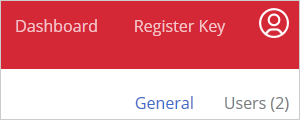
On the
Dashboard
page, click
Business Profile
in the upper right and then click
Users
(also in the upper right).
-
The
Business Account Users
list is displayed:
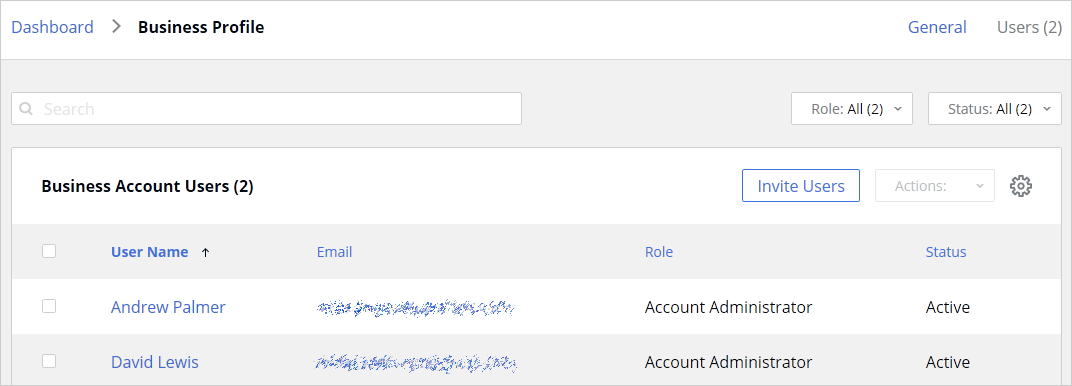
- Click Invite Users .
- In the dialog that opens, select a language of invitation, then type the email address of a user and click Add . Repeat for more users as needed. Once the list of users is complete, click the Send Invitations button.
When a user receives the email, it will contain instructions and a link to join the business account. Clicking on the link will open the following Parallels My Account dialog in a web browser:
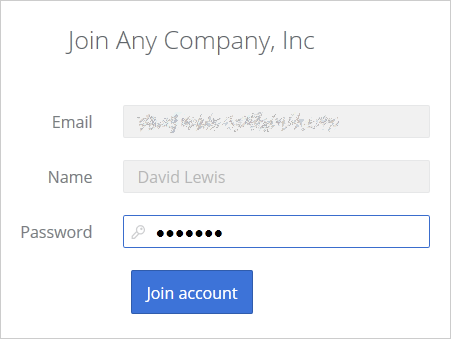
If the user already has a personal account, he/she will need to enter their current password. If the user doesn't have an account, they must choose and type a password to create a personal account. The user then clicks Join account to join and log in to Parallels My Account.
Types of business account membership
There are two types of business account membership:
- Regular Member . When a user accepts the invitation, they are initially granted privileges of a regular member. A regular member cannot manage any of the subscriptions or licenses and must be either promoted to the account administrator (see below for details) or granted rights to manage a particular license key (see Managing License Administrators ).
- Account Administrator . An account administrator has full privileges to administer all of the available subscriptions and licenses.
To promote a user to the administrator of the business account, do the following:
- Open the Business Account Users list (see above) and click the user name you want to promote.
-
The dialog displaying the user membership information opens.
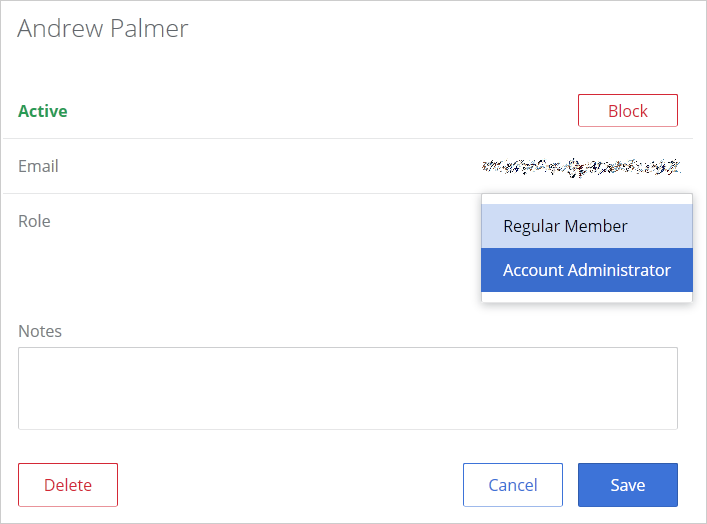
- Click the Role drop-down menu and select Account Administrator .
- Use the Notes box to enter a note if desired and click Save to save the information.
The user needs to log off and then log on again for the new role to take effect.
 Top of page
|
 Feedback
|