|
|
|
|


View Subscriptions and Subscription Details
Your registered Parallels subscriptions are displayed on the Dashboard page. To go to this page at any time, click the Dashboard link in the upper right hand corner of the screen (the red area).
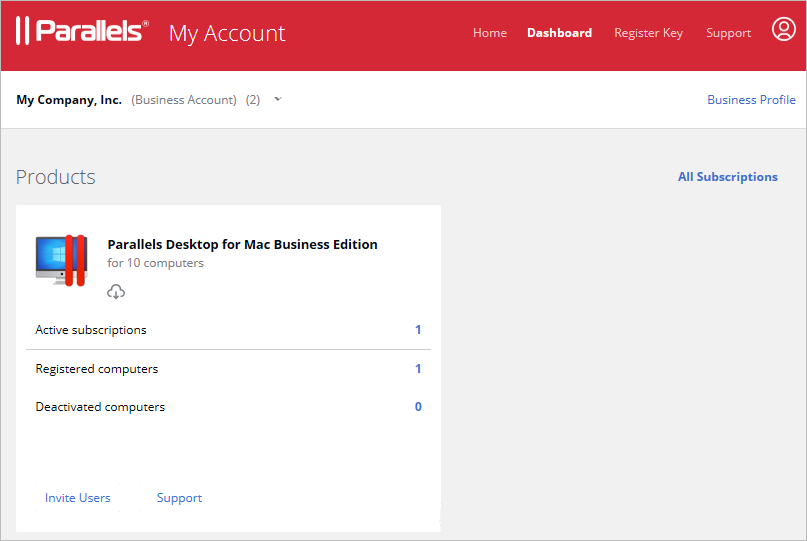
Each Parallels product that you own has its own product card (a rectangular area with the product name at the top) with some information in it, as well as links and buttons that you can interact with. We'll talk about some of them later in this guide.
To see the list of subscriptions, click the Active subscriptions row inside the Parallels Desktop for Mac Business Edition product card. The page opens displaying the subscription list.
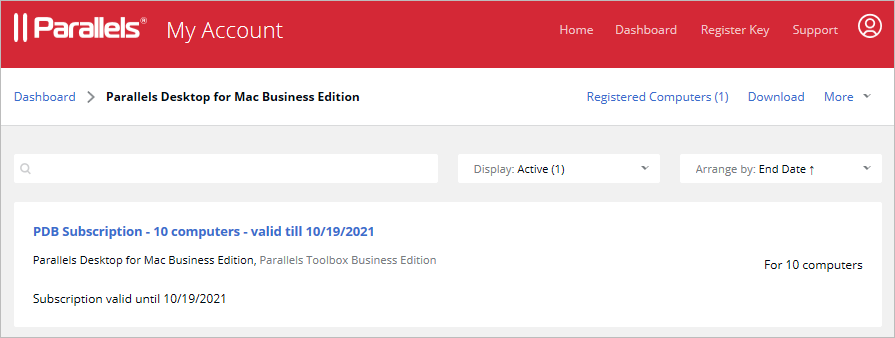
You can filter the list by clicking the Display drop-down menu and choosing from All , Active , Expiring soon , or Expired . You can also sort the list by clicking the Arrange by drop-down menu and choosing a desired option.
To see subscription details, click the the subscription name. This opens the page containing the subscription information.
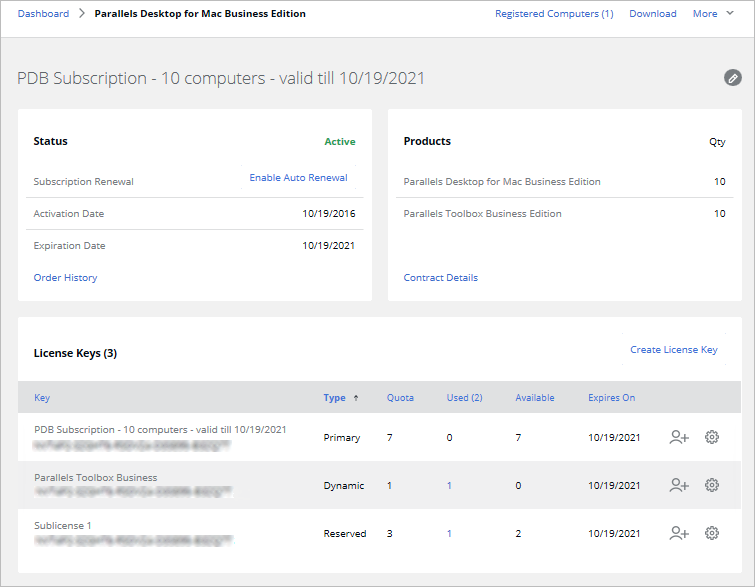
The page contains the following information:
- The Status section displays the current subscription status, renewal info, activation and expiration dates. The Order History link displays your purchase order history.
- The Products section displays Parallels products included in the subscription and the number of licenses for each product. The Contract Details link opens a dialog where you can see your contract details and your sales representative information.
- The License Keys table displays the primary license key included in your subscription and one or more additional license keys (also known as sublicenses), if any. You create additional license keys yourself by clicking the Create License Key link above the list. For more information, see Create Additional License Keys . To sort the License Keys list by one of the license properties, click the desired column heading.
The
 link (at the top of the page) allows you to change the subscription name. Click the link and then edit the name. When done, click the green check mark icon so save the name.
The
 link is used to invite users via email to install and activate Parallels Desktop on their computers. See
Invite Users to Install Parallels Desktop
.
link is used to invite users via email to install and activate Parallels Desktop on their computers. See
Invite Users to Install Parallels Desktop
.
The
 link on each license key row opens a dialog where you can see the license keys properties and manage license administrators. For more information, see
Managing License Administrators
.
link on each license key row opens a dialog where you can see the license keys properties and manage license administrators. For more information, see
Managing License Administrators
.
 Top of page
|
 Feedback
|