Sound & Camera Settings
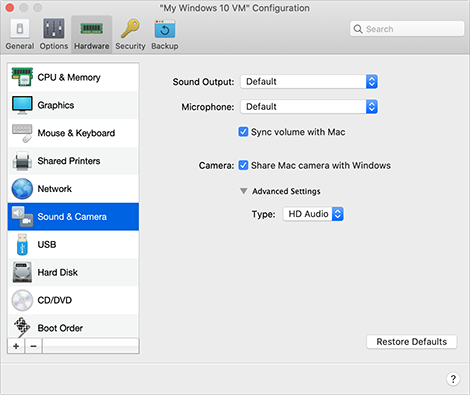
In the Sound & Camera pane, you can view and configure the sound device parameters and share the Mac's camera with the virtual machine.
To open these settings, choose Actions > Configure > Hardware , then click Sound & Camera .
|
Option |
Description |
|
Sound Output |
Use the Sound Output list to choose the necessary device:
|
|
Microphone |
Use the Microphone list to choose the necessary device:
|
|
Sync volume with Mac |
For Windows XP and later with Parallels Tools installed, you can set Windows and macOS volume levels to always be the same. With the Sync volume with Mac option selected, if you manually change the volume level in Windows, it is changed accordingly in macOS and vice versa.
If Parallels Tools are not installed, this option is called Use Mac sound volume . When it is selected, Windows has the same sound volume as in macOS. |
|
Share Mac camera with Windows |
Use this option to enable or disable camera sharing. |
|
Type |
From the Type menu, you can select the type of sound card you want to use in the virtual machine. You can choose between AC'97 and HD Audio . |
 Top of page
|