Adjust Devices Settings
In the Devices pane of Parallels Desktop Preferences, you can:
- Set what happens when you connect any new USB device to your Mac.
- Set a particular device to always be used with either macOS or Windows.
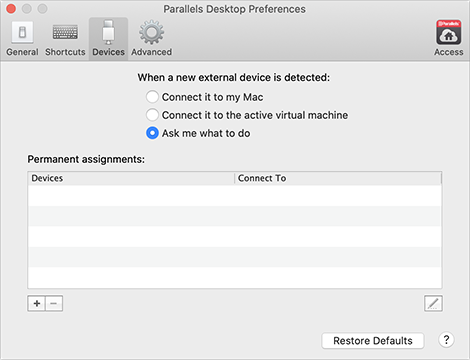
To access Devices Settings:
-
Do one of the following:
-
Click the Parallels icon
 in the menu bar and choose
Preferences
.
in the menu bar and choose
Preferences
.
- If the Parallels Desktop menu bar is visible at the top of the screen, choose Parallels Desktop > Preferences .
-
Click the Parallels icon
- Click Devices .
Set What Happens When You Connect a New External Device to Your Mac
Choose one of the following:
- Connect it to my Mac . New external devices are automatically available for use with macOS applications.
- Connect it to the active virtual machine . New external devices are automatically available for use with Windows programs. If Windows isn't running, the external device is connected to macOS.
- Ask me what to do . Each time you connect an external device, you're prompted to choose whether you want to connect the device to Windows or the Mac.
Set a Particular External Device to Always Be Used With macOS or Windows
If you know you always want a particular external device to be available to either macOS or Windows, you can set it to do so by following the instructions below. The device must already have been connected to your Mac at least once.
- Click the Add (+) button towards the bottom of the window.
- Select the device from the list.
- Double-click the word (either Computer or some form of Windows ) in the Connect To column. The word becomes a pop-up menu.
-
Do one of the following:
- To set the device to always be available to macOS applications, choose Computer from the menu.
- To set the device to always be available to Windows programs, choose Windows from the menu.
To remove an existing assignment, so that the device no longer automatically connects to macOS or Windows, select the device in the External Device column and click the Remove (-) button.
Important: To be able to use an external device with Windows programs, you may need to install Windows drivers for the device. Typically you can download drivers from the manufacturer's website.
 Top of page
|